

Social sharing buttons are very important for any type of website, be it a blog, business, portfolio or e-commerce. These social buttons will help you to spread your post on various social networks but the main concern is that where should you place the buttons? Should these social buttons be placed at the top or at the bottom? Well, we won’t argue which position is the best, but a solution would be to add a floating social bar that scrolls along your content.
If you place the buttons at multiple places, then it will adversely affect the page load times. That’s why, we can use a WordPress plugin named as Sharebar which adds a dynamic and fully customizable vertical box to the left of a blog post with buttons to popular social networking sites.
Install this plugin like every other plugin by going to Plugins > Add New and then search and install this plugin. Once the plugin is installed, go to Settings > Sharebar to start configuring this plugin.
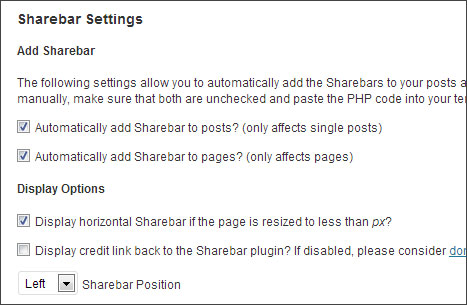
From this screen, click on Settings from top right side to configure this plugin. From here, you can choose whether you want to add Sharebar only to posts or to pages also. There’s also an option to display Sharebar if the page is resized to less than 1000px. This means that if the page is resized below 1000px, the vertical bar disappears and a horizontal Sharebar appears under the post title. The vertical Sharebar will display big buttons while the horizontal Sharebar will display small buttons that will appear under the post title.
Set the position of the Sharebar by choosing from left or right. In most cases, you will need to set to display in the left side. Notice the “Customize” section from where you can customize Sharebar by entering the width, background color and border color. You will be presented with a color picker so that you can enter the exact color that matches with your theme.
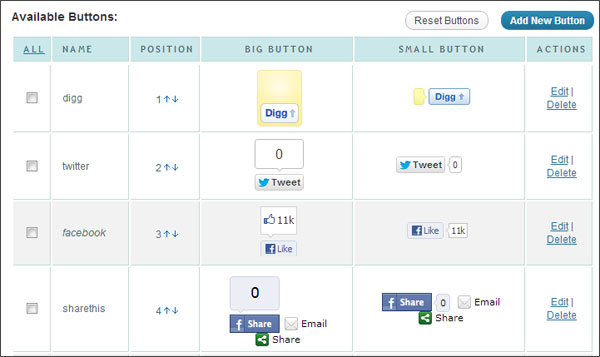
Next, its time to choose which buttons to show in the website. You have the option to choose from Digg, Twitter, Facebook, Sharethis, Buzz, Stumbleupon, etc. Strangely, there’s no option for showing Google +1 button.
You can change the order of the buttons by clicking on the up and down arrow buttons. Click on Edit button to edit the button, or click on Delete to delete the button. Click on Add New Button to add new social sharing buttons and then add the code manually.
If the auto mode is ON, then the Sharebar will be automatically added to posts and pages, but if it is disabled, then you will need to add the below code to PHP files manually:
<?php sharebar_button('name','size'); ?>
Refer the documentation to know more about the name and size parameters. Here’s how this plugin looks like in the front-end.
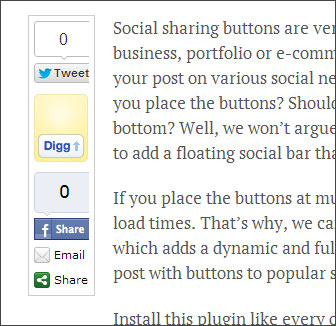
Overall it can be said that this is very useful plugin to add floating social sharing buttons to your WordPress website.
Conclusion
There are many social sharing plugins but Sharebar stands out from them. In my personal opinion, if I were to choose between Digg Digg and Sharebar, then I would always choose Sharebar. The problem with Digg Digg is that the plugin won’t be displayed when your website is viewed from mobile devices like phones and tablets whereas Sharebar is displayed in such devices also, which means that your visitor can share posts from iPad and other devices also.