

It is very much essential to track visitor activity on your WordPress site. One way to get more visitors is by looking at your traffic stats and find what your visitors like, and on what they spend the most time on. To track visitor activity such as where they came from, keyword analysis, popular pages, exit links, visitor paths, returning visits and more, you can use Google Analytics, Statcounter and such tools. In this article, we’ll be taking a look at how to install Statcounter in your WordPress site, and we’ll be discussing both the methods to do this:
- By manually placing the code in your theme’s footer.php file
- By using the official Statcounter plugin
So if you’ve opted to use Statcounter instead of using Google Analytics, then let’s get started and learn how to add Statcounter to WordPress. Doing this is really easy and anyone can do it.
Step 1: Create a Statcount account
If you’re not already signed-up on Statcounter, then head over to Statcounter and create a new account.

To create a new account, click on the Signup button from the homepage and then fill out details like: Username, Email address, Full Name, Password and then click on Create Account button.
Step 2: Adding your site to Statcounter
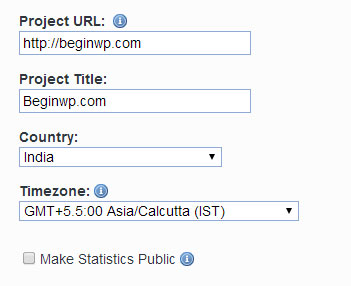
Now you’ll need to add your WordPress site to Statcounter to start the tracking process. Add your website URL, title, select your country and timezone options. Also in most cases, you should select Invisible Tracking option, and you can also select the option to get weekly, monthly, or daily reports sent to your email address. Once you’re done adding these details, click on the Add Project option.
Step 3: Placing the Statcounter code to your site
With the above step, you have successfully added the site to Statcounter. Now you’ll need to add the tracking code to your self-hosted WordPress site. There are two ways of doing this: Via using the official Statcounter plugin, and by manually adding the code to your site.
Adding the tracking code manually to your site:
From the “Other Installation Guides” section, click on Default. From the “Standard” tab, copy the code and then paste it in Appearance -> Editor -> Footer.php, just before </body> tag.
Note that you should place the code before the closing body tag and not after it. Don’t forget to click on the Update file button once you do this.
By using the Statcounter plugin:
If you want a less complicated method, or don’t want to fiddle with the code on your site, then this method is for you. You’ll first need to install the Statcounter plugin, and then activate it. Once activated, go to Settings and click on Statcounter. Enter your Project ID and your Security code (which can be got from the installation page) and hit the Update Options.
Once you do this, you can click on the “Check Installation” button to check if you’ve correctly placed the code.
Hope this small guide will help you to install Statcounter in WordPress. Now you can visit Statcounter.com to track your visitors details.
Thank you Saqib,
I have installed Statcounter code and its now fetching data to Statcounter dashboard.I have one more question : Should I use the same code if I create sub-domain ?
Yes, i think you can use the same code on sub-domain too, but do confirm with statcounter too