

WordPress is now not just limited as a blogging platform but it is also used to create full-fledged websites. But you might want to get the best of both worlds by having a website powered by WordPress, with a separate blog section. In such a case, you can have a custom homepage that displays your website’s static content, and a separate blog page where you can show-off your latest blog posts. For example, you must have seen many company’s website that displays a homepage by default, with a separate section/page for latest blog posts.
The good part is that you can easily create a separate blog page in WordPress, and you don’t need to be a tech ninja to do this. Simply follow the below steps to get going.
Step 1: Creating a New Page
To get started, the first thing that you’ll need to do is to create a new Page (and not a new Post) from Pages > Add New. Give its title as “Blog.”
I assume that you have already created a static front page (also known as custom homepage) too. If you don’t have one, then create such a page and title it as “homepage.” This page would display your static content, and it won’t display your latest blog posts.
When you’re done creating these two pages, you’ll end up having two pages:
- Blog page: Which will display your latest blog posts.
- Home page: Which will display your static content.
Some themes also offer a custom page template. For example, a full-width page template will display your content in full-width, with no sidebar. Archives page template will display your website’s archive (sitemap) in a clean and clear way to your visitors. When creating a homepage, you might like to choose a page template, but it really depends on your needs and how you want the page to appear.
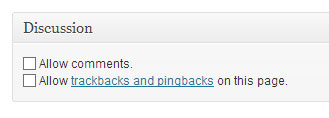
Tip: You can also disable comments on your static homepage. From “Screen options”, checkmark on Discussion. Once you enable it, you’ll be able to see a new meta box below the post edit area. Remove the checkmark from comments and trackbacks to disable comments and trackbacks on your page.
Step 2: Choosing your Front page & Blog page
The next step would be to define which will be your homepage and which will be your blog page. To do this, head over to Settings > Reading.

Select “A static page” setting, and then choose your homepage from “Front page” drop-down. Next, choose your blog page from “Posts page” drop-down. Once you’ve made the changes, don’t forget to hit the Save changes button.
Step 3: Creating/editing Menu
The final step would be to create a proper menu so that it can show your homepage and blog page. To do this, go to Appearance > Menus and create a new menu or edit an existing one. The first menu item should always be the “Home” page and then depending on your preference, add the Blog page too (as shown in the below screenshot).

So that’s how you can create a custom or separate page for displaying blog posts in WordPress. If you have any questions, then post them in the comments below.