

Many times people ask the question about customizing the comment form in WordPress. WordPress 3.0 introduced a very neat way to render comment form using a simple PHP function, inside your theme’s comment file (usually comments.php).
<?php comment_form(); ?>
The structure of the default comment form is present in /wp-includes/comment-template.php, a WordPress framework file. Because the comment form is very generic by default, you might want to customize it sometimes. It’s is highly recommended to AVOID any customization in the core WordPress files. There’s an easy way to customize comment form, and in the following tutorial, we’re going to do just that.
In this tutorial, we’re going to customize the comment form of the Twenty Eleven theme, which comes pre-installed with the latest release of WordPress. This is what it currently looks like.

The changes we’re going to make here are:
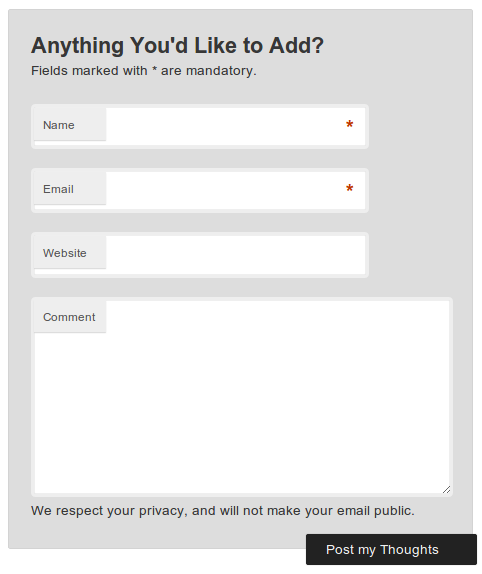
- Comment form title from “Leave a Reply” to something more meaningful, say, “Anything You’d Like to Add?”. You could change it to anything you prefer, in your theme’s comment form.
- The text just below the comment form title.
- The label text of the submit button i.e. “Post Comment”.
- Add a line of text just before the submit button (i.e. after the “Comment” text-area).
Now, to make those changes, navigate to Appearance >> Editor, and locate the Comments file of your theme. Looking for comments.php is your best bet as most themes place the Comment section code in that file only. After, you have opened the file, look for the comment_form() function. This function can also accept an associative array (‘key’=>’value’ pairs) as an argument, and this is exactly what we’re going to do to customize the comment form.
For the changes listed above, replace
<?php comment_form(); ?>
with
<?php

$comment_args = array(

'title_reply'=>"Anything You'd Like to Add?",

'label_submit'=>"Post my Thoughts",

'comment_notes_before'=>"Fields marked with * are mandatory.",

'comment_notes_after'=>"We respect your privacy, and will not make your email public.",

);

comment_form($comment_args);
?>
In the above code, we created an associative array $comment_args, and added a few key=>value pairs. The key part here is unique, and refers to a certain portion of the comment section. The value part here contains the data which we’re going to replace with the default one, set by WordPress. The $comment_args array is then passed as an argument to the comment_form() function, to render the comment form with custom-defined changes. The function of each key=>value pair used in the above code is given below:
- ‘title_reply’=>”Anything You’d Like to Add?”
The key ‘title_reply’ refers to the title text of the comment form, so we changed it’s value from it’s default one to “Anything You’d Like to Add?”.
- ‘label_submit’=>”Post my Thoughts”
The ‘label_submit’ key refers to the label of the Submit button in the comment form.
- ‘comment_notes_before’=>”Fields marked with * are mandatory.”
The above key modifies the text, which comes just after the title text, i.e. just before the form fields begin. You could also hide the text by leaving the value inside the quotes empty (but make sure to include quotes).
- ‘comment_notes_after’=>”We respect your privacy, and will not make your email public.”
This key adds an extra line of text, just before the Submit button.
After saving the Comments file, this is how it looks on my end.
The keys we used above to customize the comment form aren’t the only available keys. The purpose of this tutorial was just to introduce you to the concept of comment form customization. There are a lot more keys available to use, at this WordPress Codex page, through which you could give your comment form, a completely new look and feel. I’d encourage you to try them, and discover it’s full potential.
Great article. I think personalizing the contact form makes the site a lot more branded and helps to facilitate visitors submitting comments. In the latest release of Skematik – skematiktheme.com – we included Twitter Bootstrap and customized the default contact form to use some those styles.