

When trying to log into your WordPress site, you might get the “Cookies are blocked or not supported by your browser. You must enable cookies to use WordPress” error. This is one of the most common error when trying to login and the good news is it’s almost always fixable in minutes.
In this guide, you’ll learn exactly what causes this error and how to fix it step by step, starting with the simplest solutions first.
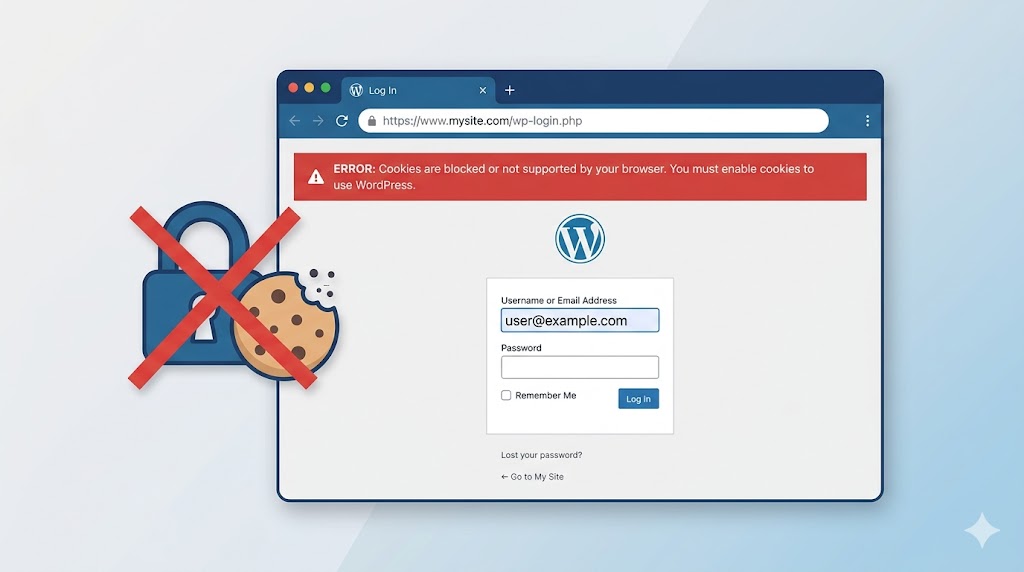
What is “Cookies Are Blocked or Not Supported by Your Browser” Error?
This error is normally displayed when trying to log into WordPress site. The login page shows this error
“Error: Cookies are blocked or not supported by your browser. You must enable cookies to use WordPress”.
WordPress relies on browser cookies to handle authentication. When something prevents cookies from being set or read, whether it’s a browser setting, a conflicting plugin, or a misconfigured wp-config.php, and in that case WordPress cannot verify your login session and blocks access.
How to Fix “Cookies Are Blocked or Not Supported by Your Browser” Error
We’ll start with simple solutions to fix this issue and then move towards more technical solutions. In most cases, the simple solution would fix the problem.
Solution #1: Refresh the page
This is one of the most simple solutions, ever. If you get this error, then you’ll simple refresh the page.
If a simple page refresh is not helping, then try to do a hard refresh to clear cached data.
Windows: Press Ctrl + F5
Mac: Press CMD + F5
This would clear your cache and load everything again.
If you’re still seeing the same error, then try visiting the WordPress Dashboard URL directly using yoursite.com/wp-admin/ and check if you’re able to access the WordPress Dashboard. Sometimes, the login page might show the error, but you’ll actually be able to access the Dashboard. This solution worked for me many times.
Solution #2: Clear Your Browser Cookies and Cache
If your browser has a corrupted or outdated cookie for your WordPress site, it can trigger this error.
- Open your browser settings
- Navigate to Privacy or Delete browsing data
- Select Cookies and other site data and Cached images and files
- Click Clear data
- Close and reopen the browser, then try logging in again
Solution #3: Try an Incognito Window or a Different Browser
Browser extensions like ad blockers, privacy shields, and tracker blockers frequently block the cookies that WordPress needs.
Open a private/incognito window (which disables most extensions by default) and try logging in. If that works, a browser extension is your culprit. Disable extensions one by one in your regular browser to identify which one is blocking WordPress cookies.
If incognito also fails, try a completely different browser (e.g., switch from Chrome to Firefox) to rule out a browser-level issue.
Solution #4: Deactivate all plugins
If browser-side fixes don’t help, a WordPress plugin may be interfering with cookie handling. You can deactivate plugins even without being able to log in by using FTP or your hosting file manager.
Use a FTP (File transfer protocol) client like Filezilla, or login to your web hosting control Panel (cPanel, or similar), and then navigate to /wp-content/plugins/
You can now deactivate individual plugins by renaming them. You’ll simply add something like “deactivated”, or any other text. Example, rename the Akismet directory to “Akismet-deactivated”. This will temporarily deactivate the plugin on the site (without any changes to it’s settings).
If you’re still experiencing the issue and want to deactivate all plugins at once, then you can rename the entire “Plugins” directory to “plugins-deactivated.”
Try to login to the site again and check how it works. If it starts working, then it means that one of your plugin is causing this issue and you’d need to deactivate each one by one to find the particular plugin causing this issue.
Note: If you’re deactivating a security plugin, then activate it as soon as possible. Leaving it deactivated for an extended period can leave your site exposed to attacks.
Solution #5: Edit your wp-config.php file
If you’re still seeing the “Cookies are blocked or not supported by your browser” error then the issue is likely a mismatch between the domain WordPress expects cookies to be set on and the actual domain being used. Editing wp-config.php fixes this directly.
Before making any changes, I’d suggest you to take a backup by downloading it to your device, or simply make a duplicate of this file on the same place and rename the old file like wp-config-old.php. You’ll then make the changes to the core wp-config.php file that’s in the root of your WordPress directory.
Open the file and add this line just before /* That’s all, stop editing! */:
define('COOKIE_DOMAIN', $_SERVER['HTTP_HOST'] );If you’re using a FTP client then upload it to the site and then try logging in again.
Conclusion
The “Cookies are blocked or not supported by your browser” WordPress error is frustrating, especially when you need to access your site urgently but it’s rarely a sign of a serious problem. In most cases, clearing your browser cookies, testing in an incognito window, or deactivating a conflicting plugin will solve it within a few minutes.
If you’ve worked through all five solutions and are still locked out, the issue may be related to your server environment. In this case, you’ll need to reach out to your hosting provider with details about the error.