

Have you ever felt the need to add custom buttons to post editor in WordPress? If you have, then you’re not the only one. You may want to add shortcodes or custom stylings to your post but manually adding or typing shortcodes every time is not a good idea, plus it’s a waste of time. Well, if you are searching for an easy solution, then read on.
Add Custom Buttons to Editor in WordPress
Before moving further, note that the buttons added by this method will be only visible in the HTML mode of your editor.
For this purpose, we can use a plugin named as Post Editor Buttons Fork. Once installed and activated, you need to go to Settings > Post Editor Buttons menu. From here, you can start adding custom buttons as per your wish.
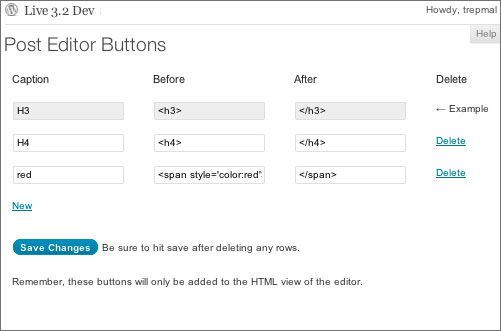
Here’s a small explanation of different headings:
Caption: Enter the name of button which you wish to see in HTML editor.
Before: HTML, shortcode or any other code which you wish to wrap before the text.
After: HTML, shortcode or any other code which you wish to wrap after the text.
For example: to add a button for H4, type in the caption as H3 (which is the button’s name), type <h4> in “Before” field and type </h4> in the “After” field.
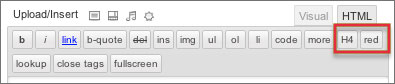
The above screenshot shows the output of the custom code in the post editor. Now you just need to select the text and hit the H4 button to apply H4 styling.
The only problem with this plugin is that it adds the button in HTML view only and not in the Visual view. But this plugin is still worth trying out.