

WordPress beginners often ask questions like how they can change the font size and font color in WordPress. As it is said that no question is stupid question and therefore this article is aimed towards beginners who are just starting out with WordPress.
How to Change Font Size in WordPress Editor
Many times people want bigger fonts to highlight or grab the attention of their readers. This can be achieved by inserting headings of different sizes.
In the visual editor, make sure that Kitchen sink is visible (by default, it is visible). Click on the Show/hide kitchen sink icon (or press Alt + Shift + Z).
Once Kitchen sink is visible, click on the Paragraph button and now you can select fonts of different sizes. Normally you would use Paragraph font for writing body text and when you want to write a heading for your post, then use the Heading element. Heading 2 or Heading 3 can be used to create a different heading for your post.
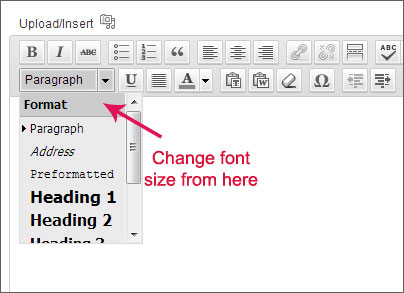
The size of font is controlled by your theme’s stylesheet, also known as style.css file. You can edit this file to suit your font styling needs. Using proper heading tags also benefit from SEO point of view.
Another alternative is to use a WordPress plugin named as TinyMCE Advanced. Once you install and activate this plugin, you can then see an additional option of “Font size” added to your visual editor.
Click on this new “Font size” button and then select the font size. The advantage is that you can now select font size which is even smaller than the normal body/paragraph font.
But if you want to change the font size of the entire paragraph, then don’t use the option from this plugin, instead, change the font size from your style.css.
How to Change Font Color in WordPress
Changing font color is also very easy. From the visual editor, click on the Text color icon which is visible behind the “Align full” option. See the below screenshot to know about the exact option.

That’s it. Now you know how to change font size and color in WordPress.