

Previously, we’ve seen how to embed Instagram photos to WordPress, and while that method still works, Instagram has now come up with new video feature which lets users upload short videos of 15 seconds, apply various effects to it and then share it with others. The concept is amazing and many users have started to share videos on Instagram to show their creativity or capture their happy moments with it.
Let’s take a look at some ways to embed Instagram videos into your WordPress site. The first method that’s mentioned below is the official method and works like a charm. Still if you prefer, then you can use any of the second, third and fourth methods to add Instagram videos to your WordPress. You’ve got plenty of ways to do it!
Before we get started, note that videos may be subject to copyright. That’s why, it’s a good idea to ask the user if it’s okay to use their work in your site.
Method 1: The Official Way
Before we get started, note that only publicly shared videos can be embedded into websites. Also the video will display creator’s username, the number of Likes and comments it has received.
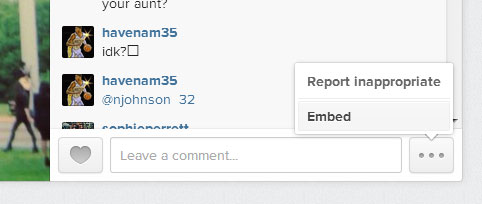
Open the Instagram page on your desktop web browser containing the video that you want to embed. You’ll now be able to see a new share button at the bottom right side of your video. Click on it and then select “Embed.”
You’ll now get the code which you need to copy and then paste it in the “Text” view of the Visual Editor of WordPress.
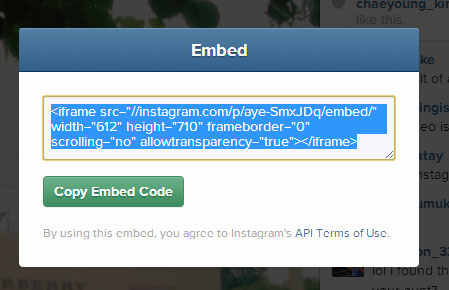
Note that you’ll not be able to see this video when you preview it in WordPress, but once you hit the Publish button, you’ll be able to see it in the webpage. You can also change the default size of the video by tweaking the code’s width and height values. The same method can be applied to Instagram photos too.
Method 2: Using Embedly Plugin
Embedly is a superb plugin to embed many different types of content to your WordPress based site. Using this plugin, you can embed videos, images, PDF from just about any source with just the URL and nothing else. Of course, this plugin has been updated to support adding of Instagram videos to WordPress.
Embedly plugin supports over 200 sources from where you can embed the content using just the URL. All you need to do is to add the URL on its own separate line and this plugin will then embed it to your site.
Embedly supports: Amazon, Apple, CNBC, CNN, Flickr, Forbes, Foursquare, Google Maps, Last.fm, Metacafe, National Geographic, Screenr, Scribd, Skitch, SlideShare, TED, Instagram, Wikipedia, Vimeo, YouTube, Vine, and many more sites.
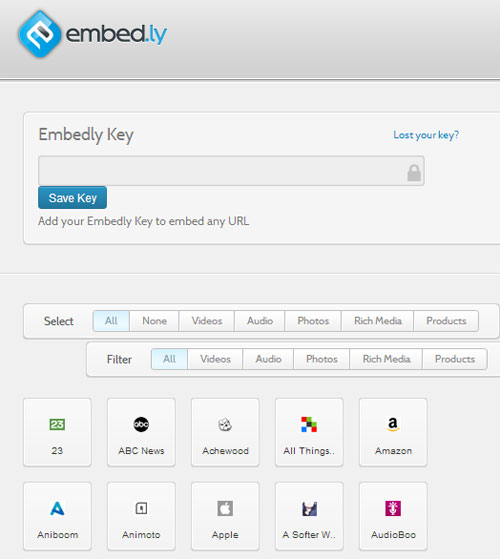
To get started, install this plugin and then create an account on http://embed.ly. Once you create an account, you will get an API key from there which you will need to paste it on the settings page of Embedly plugin. Click on “Save Key” to save the API key. Now you can add the link of the Instagram video to your post or page on a separate line and it will be turned to a playable video.
Method 3: Adding the URL to Visual Editor
If you don’t want to use the above plugin, and want the easiest method to embed Instagram video to your WordPress site then this method is for you.
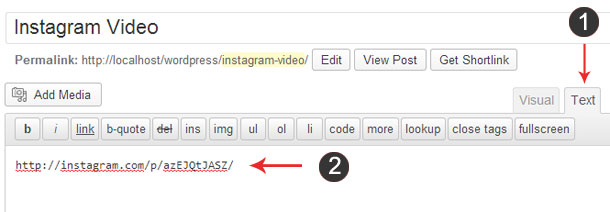
For this method to work, you simply need to get the video link and then paste it to your post or page. However, the link should be on a separate line, and it should not be a hyperlink. It would be a good idea to paste the link in Text view of the Visual Editor.
http://instagram.com/p/azEJQtJASZ/
Note that you need to be running WordPress 3.5+ version for this method to work. Also this method will just add a thumbnail of the video (and not the video) and clicking on it will take you directly to Instagram.
Method 4: Using InstaEmbed
You can use InstaEmbed to easily embed Instagram videos using HTML5. The developer claims that this method works not only on WordPress, but also on Tumblr or any other website that supports HTML5.
You need to visit this site and paste the URL of the video that you want to embed and then click on “Generate Embed Code.” Next, get the HTML5 code and paste it in “Text” view of your Visual Editor. You only need to copy the part till </video>.

Now, paste this code in the Text view of your Visual Editor. This method will add a complete video player, with play/pause, volume, mute and full screen button (similar to the below screenshot).

So that’s it. Use any of these methods to integrate Instagram videos to WordPress. Let us know which method you like the most!