

WordPress 3.6 comes with some brand new features, and one of them is the new and improved post revisions. We’ve already written a detailed guide on how to create and use Menus and now in this post, let’s learn how to use the new revamped revisions feature of WordPress 3.6.
The new revisions is now redesigned and aimed to provide a simpler and better interface compared to the earlier one. As we already know, WordPress by default will save every word you write. That’s why, revisions need not be enabled and there are no settings for it. Let’s get started.
How to Restore a Revision to a Previous Version
First thing that you need to make sure is that you should have revision’s visibility turned on from the post editor. If your post editor screen is missing revisions, then click on “Screen Options” and then checkmark on “Revisions.”
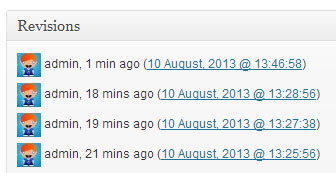
Now you’ll be able to see revisions on your post editor screen. Click on any date/date entries from the revisions box which will take you to the revisions page.
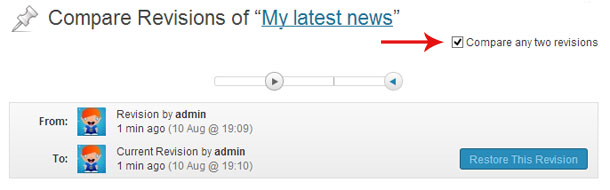
On this page, you can use the slider to select earlier versions or the latest one. When you move the slider, you’ll see the changes reflected in the page. When you’ve found out the revision that you want to use, simply click on “Restore this revision” button. The revision on the right side will be restored.

But wait, sometimes you might also want to compare different revision versions, right? To do this, simply checkmark the box that says “Compare any two revisions” and then you’ll be able to see two buttons in the slider that you can adjust to compare two revisions of your choice side by side.
Overall it can be said that WordPress 3.6 revisions are now more useful and easier to use. Do try it out.