

One of the strong points of WordPress is that more features and functionality can be added with the help of plugins. There are so many different plugins available that you’ll be enticed to try out just one more plugin, and then later on you’ll come to realize that you’re running twenty plugins on a single WordPress site. The more plugins you install, the more CPU resources your site consumes. However, it is not always the plugins that trigger high usage alert. In this post, you’ll learn how to find out such resource consuming plugins, and some steps to prevent high CPU usage in WordPress.
How to monitor CPU resource usage in WordPress
Recently I got an email from my web host stating that my CPU usage has increased substantially. Here’s what the email states:
We identified your account as one of the top CPU users on the server today. I do see that the usage is up a fair bit today from yesterday.
The consistent CPU usage for the account over the last day ranges from 42.72% – 70.56% CPU. This is a fairly substantial amount of overall system CPU resources and this doesn’t take into account any of the MySQL queries.
We’re obviously not familiar with your content but, that said, it’s important that they perform any and all optimization you can on their site so that we can ensure speed as reliability for all users on the server. If you’re running WordPress installing and properly configuring a caching plugin such as WP Super Cache would likely greatly reduce CPU usage.
In the event that the usage continues to grow and you’re not able to optimize usage you’ll either need to upgrade them to a semi-dedicated account or eventually we’d be force to suspend the account to ensure speed and reliability on the server.
When you receive such an email, it is a warning bell which means you need to immediately perform some proper optimization of your WordPress site.
But in the case when you want to manually find out what’s consuming more resources on your site, then here’s a plugin for that.
P3 (Plugin Performance Profiler) is a plugin from Godaddy which allows you to identify which plugins are slowing down your site. This plugin creates a performance report by taking into account the loading time of each plugin that’s active on your site.
Once such plugins are identified, you can then try an alternative to them, or at least try to properly configure them so that they reduce the CPU resource usage.
Once you install and activate the plugin, you’ll need to click on Scan Now from the same plugins page. Click on Start Scan from the next page.
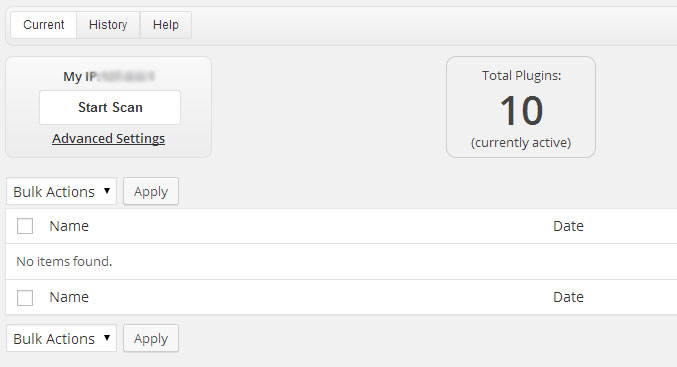
From the popup, click on Auto Scan and let the plugin scan your site automatically. You’ll then be able to view the results in the next page.
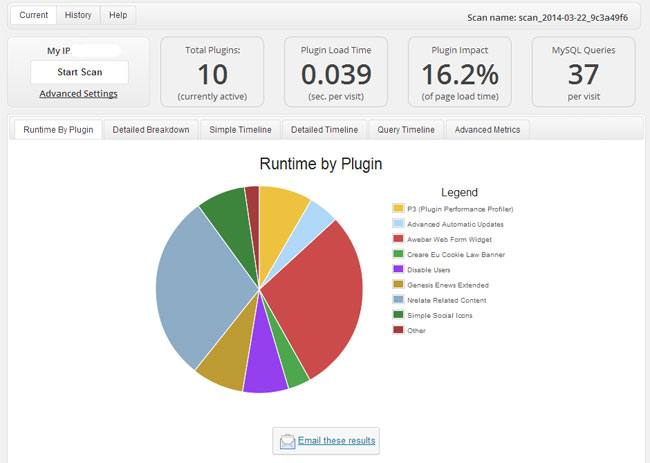
The “Runtime by plugin” tab is the one that you should be taking a look at, as it will display you runtime results per plugin. Hover your mouse over the graph and you’ll be able to see plugins name and how much time it took to run. You’ll need to identify those plugins that are taking more time to load, and then either disable them or properly optimize them to ensure that they’re not slowing down your site.
But apart from using this plugin, you can also ask your webhost about which plugin or script is consuming more CPU resources. They would check their logs and will be able to get back with results.
How to reduce/minimize CPU resources on WordPress
As advised above, once you find the culprit plugins, you’ll then know what to do with them. However, there’s more to do apart from only concentrating on plugins.
In my personal case, the WP Super Cache plugin which I previously used was somehow deactivated by mistake, and that’s what was triggering the high usage alert at my web host. I re-enabled that plugin, and also optimized WordPress database. Once I did this, my CPU usage was back to normal again (well, what a relief).
So let’s take a look on things to do to minimize CPU usage:
-> Ensure you’re running the latest version of WordPress. If you’re not, then you can make use of the auto-update feature of WordPress.
-> Ensure that you’re running the latest version of all the plugins and themes.
-> Try to reduce the number of plugins that you’re using. Remove all the extra plugins that you think you can do without, for example social sharing plugins, Google Analytics and Statcounter plugins, and more. Instead of using a separate plugin for Google Analytics, why not simply insert the tracking code in the theme itself. In this way you can reduce the number of plugins.
-> Use P3 plugin (mentioned above) to find out which plugin is slowing down your site.
-> Very important: Install a caching plugin like WP Super Cache or W3 Total Cache. These two are the most popular caching plugins out there. If you’re a beginner or want something simple, then WP Super Cache plugin is for you, and if you’re an advanced user and want to configure CDN, then W3 Total Cache plugin is for you. Even after installing and activating the plugin, you’ll need to properly configure it, which is the key to optimizing a WordPress site.
So that’s it. Hope this will help you to find the culprit, and reduce CPU usage of your WordPress site.
I use WP Optimizer to clean the data base and revisions.
is there something to have a report of cpu usage of all process on a shared hosting?
P3 does not work any more and is not maintained.
Another way i found to get some figures is https://wordpress.org/plugins/f12-profiler
Good luck!