

Creating backup of WordPress is very important, as it can come in handy when something wrong happens. Who knows when the disaster strikes, its always recommended to be ready with your backup. We shouldn’t always rely on our web hosts who claim that they auto-backup the site every x days or x minutes. In most cases, your web host should have provided you access to cPanel (also known as Control Panel) which can be called as a central place for managing your entire site, be it files, folders or database, everything can be managed and configured from here.
Now you have two options – full backup or partial backup. Full backup means everything will be backed-up and partial backup means taking backup of home directory, MySQL database or Emails. Instead of partial backup, it definitely makes sense to use full backup option. In this tutorial, we’ll take a look at both the options.
Backup WordPress from cPanel
Login to your cPanel (usually the address to access cPanel would be www.yourdomain.com/cpanel). If you do not have the details to login to your cPanel, then contact your web host and ask them to help you.
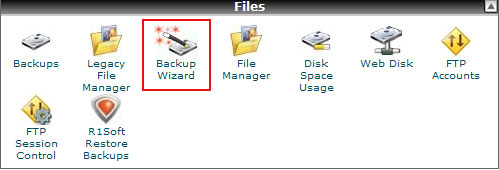
Scroll down and you’ll see the “Files” section. Click on Backup Wizard.
Now you’ll need to decide whether you want to do a full backup or only a partial backup. Click on the respective option to start the backup. If you’re not sure, then we would recommend you to do a full backup.

Next, you’ll be presented with an option to select backup location. In most cases, you would select “Home Directory”, which is the root location. Also enter your email so that you can be notified when the backup is complete. Finally, click on Generate Backup button.

If you selected the email option to notify you when the backup is complete, then you should be getting an email within few minutes. Once your backup is ready, you’re good to download it to your computer.
To download this backup, open File Manager from cPanel and in the root, you’ll see a file which would be named something like this: backup-1.02.2012_01-20-22_yourdomain.tar. Select it and click on the “download” button. Alternatively, you can also use a FTP program like FileZilla to connect to your web host and then download this file.
Note that if you are hosting more than one website, then this process will backup all those websites in one go. You do not need to follow this process for each and every website that you host.