

Often WordPress beginners face problem in embedding a YouTube video to WordPress posts or pages. But don’t worry, embedding a YouTube video to WordPress is a piece of cake, all thanks to oEmbed, but we need not to study in detail what is oEmbed and how it works. Now, there are two ways to add a YouTube video to WordPress and we’ll be taking a look at both the methods in detail.
Method 1: Paste a Link to Video Page
This is the most easiest method to add a YouTube video to WordPress. Simply paste the link of the video on a separate line in the visual editor.
- Open the video on YouTube and copy it’s URL from the address bar of your web browser.
- Paste it on your WordPress’s visual editor on a separate line where you want to make the video appear but make sure it’s not hyperlinked. If it is, then remove the hyperlink by clicking on the “Unlink” button.

Method 2: Grab the Embed Code & Paste it in Editor
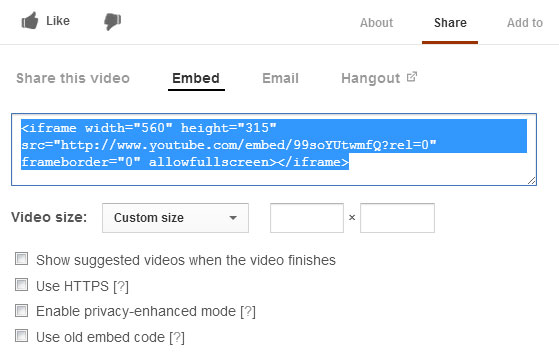
Here’s an alternative method where you have to use YouTube’s embed code. If you choose this method, then you have a few other options such as specifying the size of the video or specifying whether you want to show or hide suggested videos when the video finishes. This method is ideal for those who want to embed a video as per their site’s width. For example; if your site’s width is 650 pixels, then you can cover that entire area by specifying your custom size when grabbing the embed code from YouTube.
- Visit YouTube and open the video that you want to embed.
- Click on the “Share” button under the video and then click on the “Embed” button.
- Before copying the embed code, you can specify your own custom size and also select other options like displaying the suggested video or not, and more. Once you’ve done this, copy the embed code.
- Open the WordPress post or page where you want to embed the video, and in the “Text” tab in your visual editor, paste the code where you want the video to appear.
Embedding YouTube Video to Text Widget
The above two method works great if you want to add video to a post or page, but what if you want to embed the video to a text widget? Yes, this is possible, and all you need to do is to paste the embed code in the text widget. Don’t add the link to the video page or else the video won’t appear, instead you need to add the embed code in the widget. However, make sure that you choose custom size for your video so that it properly fits in your widgetized area like sidebar, footer, or any other. In most cases, you need to choose a smaller size so that it doesn’t extends beyond your widgetized area.

That’s it. Use these methods to add a YouTube video to post, pages or any widget on your site.
While you’re here, don’t forget to subscribe to our YouTube channel.