

If your spam queue has thousands of comments in it, deleting them one screen at a time is not realistic. You want to bulk delete WordPress comments in one go, and you want it to finish without timing out.
That last part is where most people get stuck. WordPress has an Empty Spam button built in, and for a few hundred comments it works fine. Past a certain point your host kills the request before it completes, the page hangs, and you are back where you started with a queue that never empties.
Before you start: take a backup.
Every method below is permanent. Deleted comments do not go to the trash, and there is no undo.
Why delete WordPress comments
Comments are important because they help with two-way communication. Readers and the author (or admin) can connect using comments. But at times, you might want to delete them from your WordPress site.
Every spam comment is a row in wp_comments, often with extra rows in wp_commentmeta. Tens of thousands of them slow down queries and bloat your backups.
Some comments can contain malicious content, and links to unsecured websites. They can also negatively affect your site’s SEO (search engine optimization).
Note that spam comments sitting in the spam queue are not indexed and are not hurting your rankings. The urgent cleanup is anything that got approved by mistake.
Method 1: Use the built-in WordPress tools
No plugin required, and this handles most sites.
- Go to Comments in your WordPress Dashboard.
- Click on the Spam link from this page.
- Click on Empty Spam.
Everything marked as spam is deleted permanently.
For pending or approved comments:
- Go to Comments and click Pending or Approved.
- Tick the checkbox at the top of the column to select everything on the page.
- Choose Move to Trash from the Bulk actions dropdown and click Apply.
- Open the Trash view and click Empty Trash.
If you want to delete a large number of comments then click on Screen Options from the top right of the page and then enter something like 100, or 300 (depending on your requirements). This will help you to delete comments in bulk.
Method 2: Using the WP Bulk Delete Plugin
For this tutorial, we can use a WordPress plugin that will allow us to bulk delete WordPress comments.
Install and activate the WP Bulk Delete plugin which doesn’t only helps with comments, but you can also delete posts, pages, users, taxonomy and meta fields in bulk. You can apply various filters and conditions while deleting.
Once this plugin is activated, you’ll be able to view the WP Bulk Delete menu.
Go to WP Bulk Delete > Delete Comments.
Select the comment status, or other filters based on your requirements. You can also delete comments based on date. Once you’ve selected the options, hit the Delete Comments button.
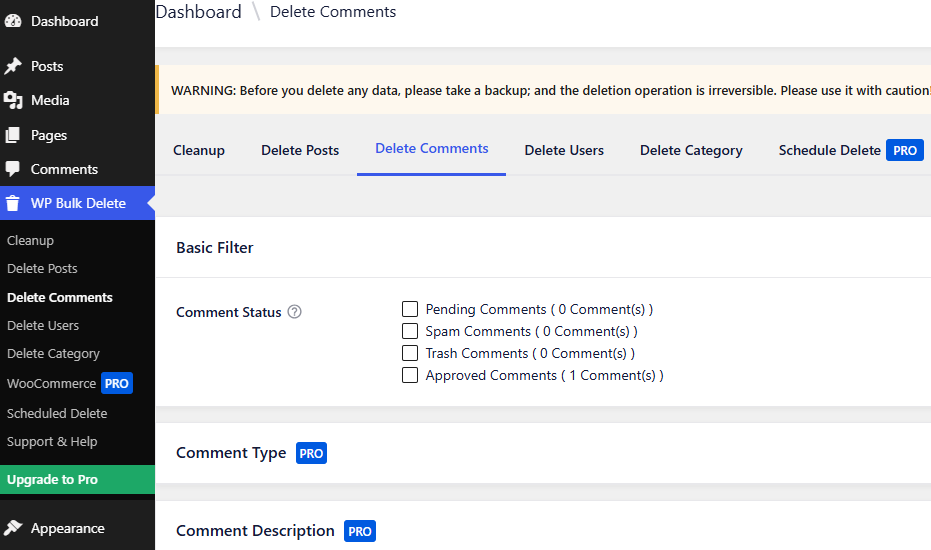
It runs in batches rather than one enormous request, which makes it more reliable than the built-in buttons on a big queue. It is still PHP, though, so on a genuinely huge table you may still hit limits.
Method 3: Direct SQL through phpMyAdmin
Use this when the queue is so large that nothing else finishes.
For this method, we’ll run targeted queries and not delete “all” comments at once.
Step 1: Open the SQL tab
1. Open phpMyAdmin from cPanel or your host’s dashboard.
2. Select your WordPress database in the left sidebar.
3. Click the SQL tab.
Your table prefix may not be `wp_`. Check the table names in the sidebar and adjust the queries below to match.
Step 2: Delete the comment meta first
Comment metadata lives in a separate table and is not removed automatically. Delete it first, while the comments still exist to identify it:
DELETE FROM wp_commentmeta

WHERE comment_id IN (

SELECT comment_ID FROM wp_comments WHERE comment_approved = 'spam'

);
Step 3: Delete the comments
DELETE FROM wp_comments WHERE comment_approved = 'spam';To target a different status, swap 'spam' for a value from the table above. Change it in both this query and the previous one. Change only one and you delete one status while removing another status’s metadata.
To target a different status, change the value. WordPress stores them like this:
Status – `comment_approved` value
| Approved | `1` |
| Pending | `0` |
| Spam | `spam` |
| Trash | `trash` |
So to clear pending comments, use `WHERE comment_approved = ‘0’`.
Example (to Delete spam)_:
DELETE FROM wp_comments WHERE comment_approved = 'spam';Delete pending comments awaiting moderation:
DELETE FROM wp_comments WHERE comment_approved = '0';Delete the trash:
DELETE FROM wp_comments WHERE comment_approved = 'trash';Step 4: Fix the comment counts
WordPress caches a comment count on every post in `wp_posts`. Deleting rows directly does not update it, so your posts will advertise comments that no longer exist. Resync them:
UPDATE wp_posts p

SET comment_count = (

SELECT COUNT(*) FROM wp_comments c

WHERE c.comment_post_ID = p.ID AND c.comment_approved = '1'

);
This is the step almost every tutorial leaves out, and it is why people end up with a very big comment count after a database cleanup.
Step 5: Reclaim the space
Deleted rows do not shrink the table on disk right away. Select `wp_comments` and `wp_commentmeta` in phpMyAdmin, then choose Optimize table from the dropdown at the bottom.
Wrapping up
WordPress also runs a daily scheduled task to remove spam comments older than 30 days. So WordPress will automatically take care of old spam comments. However, if the comment was already approved then it won’t help.
Hope this article will help you to bulk delete WordPress comments.