

Pricing table is one important piece of your content which needs to be beautiful as well as entice users to click on your action button. You won’t like to create a confusing table that’s hard to understand by your visitors. That’s why, if you’re using WordPress and want to create a pricing table, then you can use a plugin for this purpose – no need for any HTML or CSS knowledge.
Now, when you search for pricing table plugin on WordPress.org, you’ll find many such plugins. That’s why, we’ve handpicked one plugin that works great and is easy to use. Without any further ado, let’s start.
Install and activate Price Table plugin. Once activated, you can see a new “Price Tables” menu option in your Dashboard. From there, click on “Add New.” From this page, you can start adding your pricing table.
Enter the title so that you can recognize the table, but skip adding description as it won’t be displayed anywhere. Click on “Add Column” to start adding your first column. Don’t worry, later on you can re-arrange these columns as per your wish.
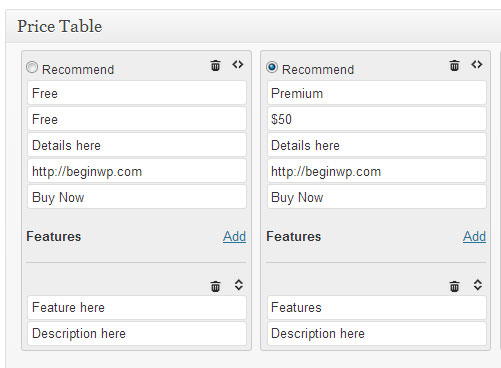
Now go ahead and fill out all the details in your table. For the column which you want as highlighted (or featured), click on “Recommended” option. There are also buttons for deleting a particular column or rearranging it.
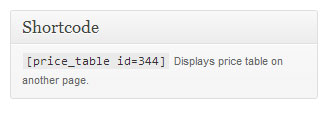
Once you have finished adding data to the columns, Publish it. Below the Publish section, you’ll see a Shortcode section. From there, copy the shortcode and paste it into any WordPress post or page.
Here’s how your pricing table will look like in the front-end.

It would be great if the plugin had any options for changing colors, style, and more. But since there are no such options, you’ll have to deal with the default style. This Price Table plugin is a superb choice for creating clean looking, as well as stunning pricing tables in WordPress.