

WordPress spam comments used to be easy to spot. Broken English, twenty links, a username like “cheap_watches_10.” Akismet caught them, and you never thought about it again.
That’s changed. Spam comments are now written by AI, and they read like real ones. They’re grammatical, they reference your actual post, they compliment your writing, and they slip a single link in the message. This is AI comment spam, and it’s a different problem from the junk that traditional spam filters were built to catch.
In this tutorial, you’ll learn how to block AI comment spam in WordPress using ActiveLayer, an AI-powered spam filter that judges what a comment actually says instead of checking it against a database of known spam. Your visitors never see a CAPTCHA, nothing sits waiting in your moderation queue, and the whole setup takes about ten minutes.
In This Article:
- Why AI Spam Comments Get Past Akismet and Other Filters
- Step 1: Create Your Free ActiveLayer Account
- Step 2: Install the ActiveLayer Plugin
- Step 3: Connect Your API Key
- Step 4: Turn On Comment Protection
- Step 5: Configure Your Advanced Settings
- Step 6: Testing if it's Working
- Bonus Tips: Seven More Ways to Reduce WordPress Comment Spam
- Frequently Asked Questions
- Wrapping up
Why AI Spam Comments Get Past Akismet and Other Filters
Most anti-spam tools work by pattern matching. They compare an incoming comment against a database of known spam: phrases that have been reported before, IP addresses with bad reputations, links to flagged domains. Akismet is the best-known example, and for classic bot spam this approach works well.
The weakness shows up with AI-generated comments. When a spammer generates a unique, well-written comment for every post they target, there’s no repeated phrase to match and no established pattern to recognize. The comment is new, so the database has never seen it.
ActiveLayer takes a different approach. Instead of asking “have I seen this before,” it evaluates what the comment says, whether it’s relevant to the post, and how it behaves. A polite three-sentence compliment that mentions your topic but exists only to place a link reads differently from a genuine reader response, and that difference is what gets measured.
Step 1: Create Your Free ActiveLayer Account
Head to activelayer.com and sign up. The free plan includes 200 checks and requires no credit card.
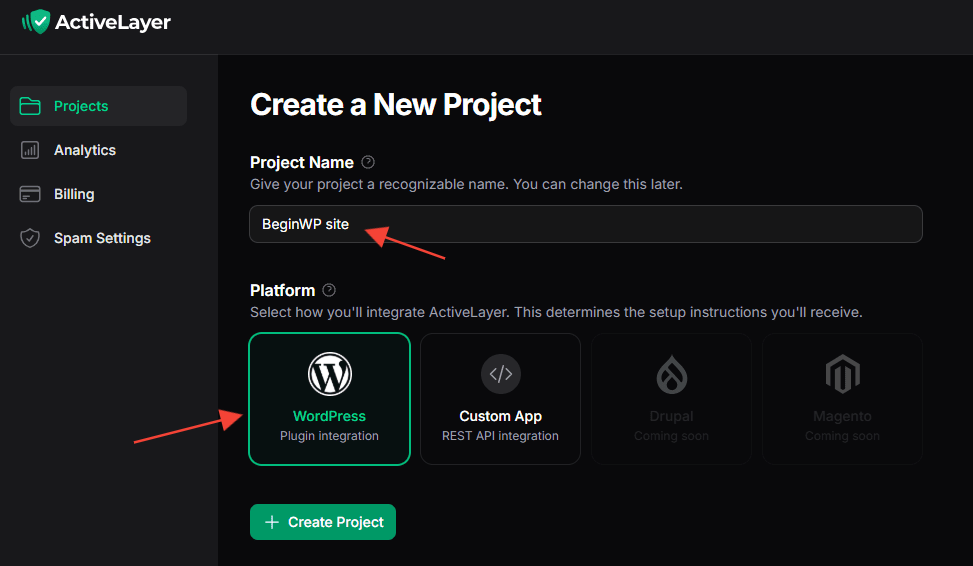
Once you’re signed up, log in at app.activelayer.com and then click on New Project. You can think of a new project as a new site.
On the next page, enter the name of your project, select your Platform (WordPress), and hit the Create Project button.
This will create your new project, and you’ll be able to view your API key. Copy this API key, or keep the tab open, as the API key is displayed only once.
Step 2: Install the ActiveLayer Plugin
In your WordPress dashboard:
- Go to Plugins > Add New.
- Search for ActiveLayer.
- Click Install Now, then Activate.
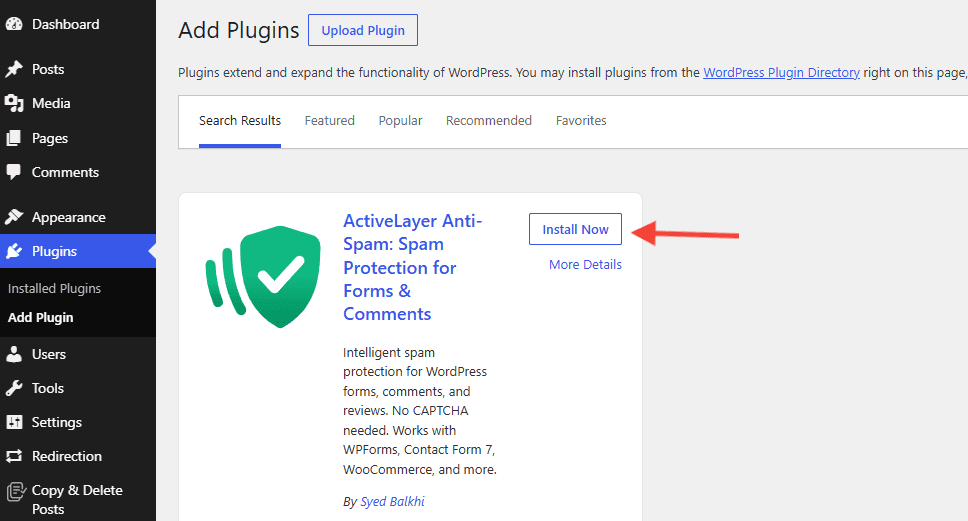
An ActiveLayer item now appears in your admin menu.
Step 3: Connect Your API Key
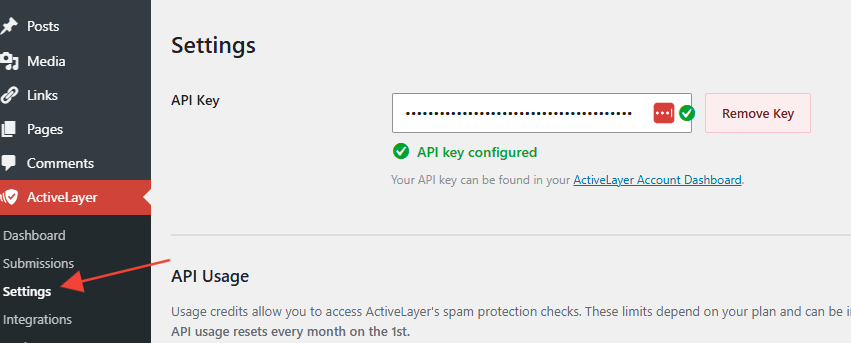
- Go to ActiveLayer > Settings.
- Paste your API key into the API key field.
- Click Verify Key.
Once you’ve added the key, you’ll see a green checkmark, confirming that your site is connected to ActiveLayer.
Step 4: Turn On Comment Protection
You’ll now need to enable the protection for the WordPress comment form.
- Go to ActiveLayer > Settings, and find the WP Comments section.
- Tick Enable spam protection.
- Save your changes.
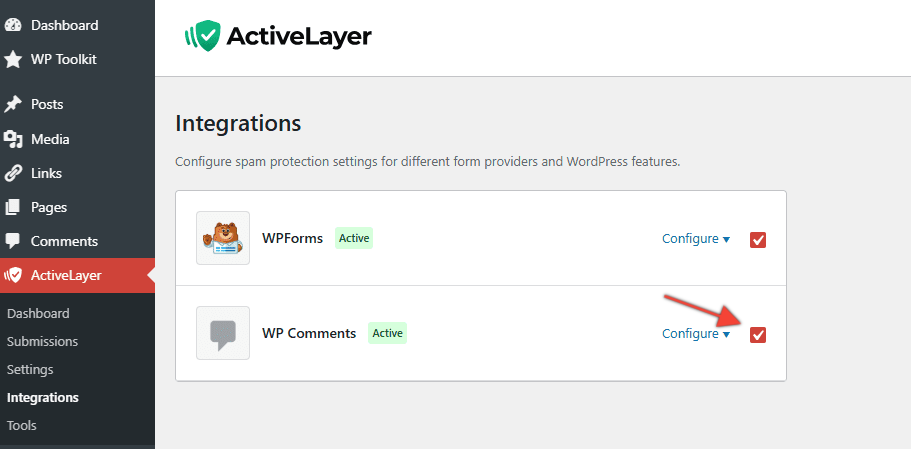
That’s the minimum setup. Every new comment is now checked before it appears. The next step covers the settings that let you tune how strict it is.
Step 5: Configure Your Advanced Settings
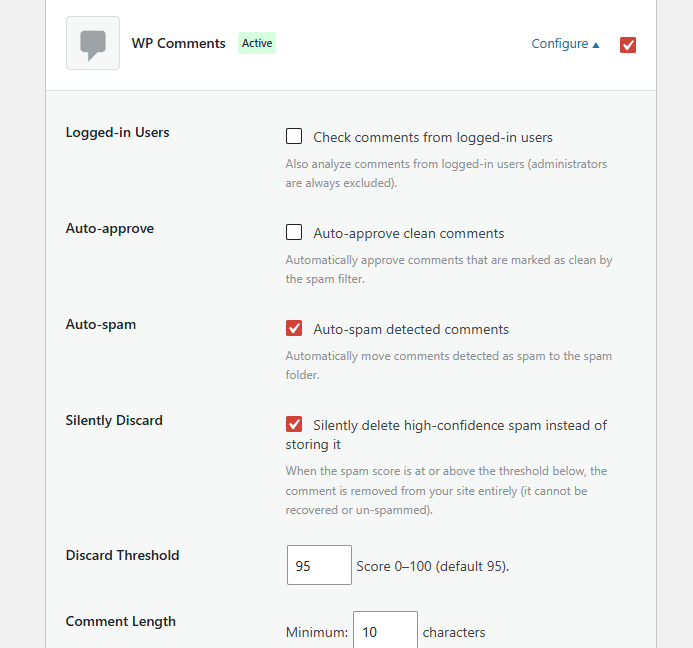
From the same page, click on Configure under WP Comments. These control how ActiveLayer handles the different cases. The defaults are sensible, so change them only where your site needs something different.
Logged-in user rules. Determines whether comments from registered, logged-in users get checked. On a membership site or a site where you know your commenters, skipping checks for logged-in users saves credits and avoids annoying regulars. On a site where anyone can register, keep checking them, because spammers register accounts too.
Auto-approval. Decides whether comments that pass the spam check publish immediately or wait for your approval. Auto-approval is the reason to run a filter at all, so leave it on unless your site requires every comment to be reviewed by a human regardless.
Spam behavior. Controls what happens to a comment judged to be spam. Sending it to the spam folder rather than deleting it is the safer choice, especially in your first few weeks, because it lets you check for anything wrongly caught. Once you trust the results, you can be more aggressive.
Comment length. Sets thresholds for how short or long a comment can be before it gets extra scrutiny. Very short comments like “Great post!” and very long ones are both common spam shapes. The default is a reasonable starting point; tighten it only if you see a specific pattern getting through.
Trackbacks and pingbacks. These are automated notifications from other sites linking to your posts. Enable checking for them. If you don’t use pingbacks at all, then it’s safe to switch them off entirely.
Save your changes when you’re done.
Step 6: Testing if it’s Working
- Open one of your posts in a private browser window and leave a normal test comment.
- Log in to your ActiveLayer dashboard at app.activelayer.com and open the Analytics page. Alternatively, you can also check the submission from the ActiveLayer menu on your site, and going to Submissions.
Your test comment should appear with its result and risk level. If the filter ever gets one wrong, you can mark it as spam or clean from that page, and nothing you mark is lost.
If your test comment doesn’t appear at all, go back to Step 4 and confirm the WP Comments toggle is still enabled.
Bonus Tips: Seven More Ways to Reduce WordPress Comment Spam
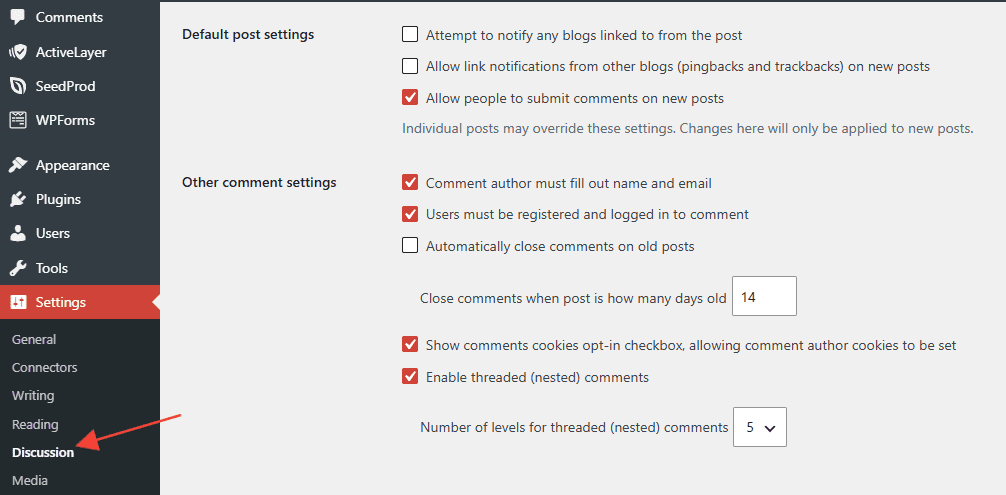
ActiveLayer handles the filtering, but WordPress has built-in settings that reduce the volume arriving in the first place. Fewer junk comments hitting your site means fewer checks used and less to review. All of these live under WordPress Dashboard > Settings > Discussion.
1. Require a name and email. Tick “Comment author must fill out name and email.” This setting acts as a barrier, and it stops the laziest bots.
2. Hold comments with multiple links. Set “Hold a comment in the queue if it contains 2 or more links.” Links are the entire point of most spam, and legitimate commenters rarely include more than one.
3. Auto-approve known commenters. “Comment author must have a previously approved comment” means regulars publish instantly while new names get reviewed. It’s a good middle ground between full moderation and none.
4. Close comments on old posts. Under Other comment settings, enable “Automatically close comments on posts older than” and set it to 40 to 90 days. Spammers target old posts heavily because nobody’s watching them, and genuine discussion on a two-year-old post is rare.
5. Turn off pingbacks and trackbacks. Untick “Allow link notifications from other blogs (pingbacks and trackbacks) on new posts.” Almost nobody uses these anymore, so it’s safe to disable it.
6. Use the moderation and disallowed lists. The Comment Moderation box holds any comment containing the words, URLs, or IP addresses you list. The Disallowed Comment Keys box goes further and bins them outright. Add terms you see repeatedly in whatever slips through.
7. Disable comments where you don’t need them. Pages, media attachments, and landing pages rarely need comments, and attachment pages in particular are a spam magnet most site owners never check. Turning comments off there removes the target entirely.
Frequently Asked Questions
Why am I suddenly getting more spam comments?
Usually one of two things. Either your site picked up enough links or indexing for spammers to find it, or the spam itself changed. AI-generated comments cost almost nothing to produce at scale, so overall volumes have risen sharply. If the spam reaching you is well written and getting past a filter that used to work, then it’s due to AI.
Can AI-written spam comments get past Akismet?
Yes, and that’s why this tutorial exists. Pattern-matching filters recognize spam they have seen before, so a comment generated fresh for your specific post has nothing in the database to match against. Akismet still catches large volumes of conventional spam, which is why plenty of sites run both tools together.
Will ActiveLayer block real comments by mistake?
No filter is perfect, but you can see and correct every decision. Each comment on the Analytics page shows its result and risk level, and you can mark anything as spam or clean. For your first couple of weeks, set spam behavior to move flagged comments to the spam folder rather than deleting them, so nothing is lost while you check the results.
Should I just turn off comments instead?
It works, and if you never read your comments, it is the simplest option. But comments bring readers back, add content to your pages, and produce the questions that often become your next post. Comments also keep your readers engaged.
Wrapping up
Every comment is checked before it appears, including the AI-written ones built to read like the real thing. Your commenters never see a CAPTCHA, and every decision with its risk level sits on the Analytics page in your ActiveLayer dashboard.