

Previously we explained you how to add Google Maps to WordPress. Google Maps is without a doubt very popular, but some of you might even want to try out adding Bing Maps to your WordPress site. In this article, you’ll learn how to easily embed Bing Maps to WordPress post, page or any widgetized area.
Bing Maps, although not much popular compared to Google Maps but they’re still a good alternative to Google Maps. So without any further talk, let’s get started.
Embedding Bing Maps to WordPress
Just like Google Maps, you can get a simple code from Bing which you can then embed in your WordPress site. Also there’s a plugin method but we will talk about it later on.
Head over to Bing Maps and search for the location on the map which you want to embed. You can also make use of zoom in and zoom out buttons so that you can embed your desired map section. Once you have found the location, click on the Share button located at the top right corner of the screen.

You’ll now get a popup displaying a link to this page, and an embed code. Since we’re interested in embedding the map, copy this code, or if you want to further customize the map then click on Customize and Preview button.
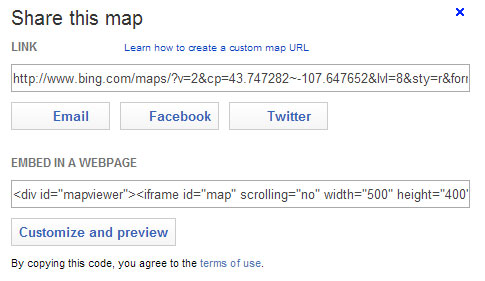
On this window, you’ll be able to choose several options, such as you can choose map size, map options like static map or draggable map, map style and other such options. Customize the map and then click on the Generate code button to get the code.

Now you can paste this code in your WordPress post or page in the Text view of your Visual Editor. Remember that you should paste it only in Text view and not in Visual view. If you want to add the map to the sidebar, footer or any such widgetized area, then you can paste the code in the Text widget, however, you might want to embed a smaller map if you’re adding it to the sidebar or else it won’t look good.
Adding Bing Maps via a Plugin
As always, for those who don’t prefer the above method can use a WordPress plugin for this task. Leaflet Maps Marker is one such plugin that not only supports Bing Maps but also Google Maps and OpenStreetMap.
Once installed and activated, you’ll need to get a Bing Map API Key from Bing Maps Portal site. This key needs to be added in the Settings page of the plugin. You’ll also need to configure several other settings in the plugin.
Once you’ve added a new marker, you’ll get a shortcode which you can then add to any page or post.
So go ahead and add Bing Maps to your WordPress site with any of the above method as per your convenience.