

There’s one thing that WordPress users should perform religiously – to keep the WordPress core, plugins and themes updated. This is important not just to fix bugs but also from security point of view. What’s more, the new version may come with some new and improved features. Therefore it is very important to always use the latest version of WordPress. In this article you will learn how to update the core WordPress to the latest version, all within a few minutes of time. So let’s get started.
How to Auto-Update WordPress (for Beginners)
While you can also update WordPress manually (which is a long and boring process), in normal cases you can use the auto-update feature of WordPress which can update your WordPress installation to latest version within a few minutes.
Step 1: Whenever a new version of WordPress is available, you will be able to see this yellow bar in your WordPress Dashboard which will say “WordPress (version no.) is available! Please update now.” Click on the Please update now link from here. Alternatively, you can also go to Dashboard -> Updates to start the update process.

Step 2: In the second page, you will get some instructions that will inform you to backup your database and files before performing update. From this page, click on Update Now button.

Step 3: Wait for some time to finish the updating process and you’ll be able to see the below screen.
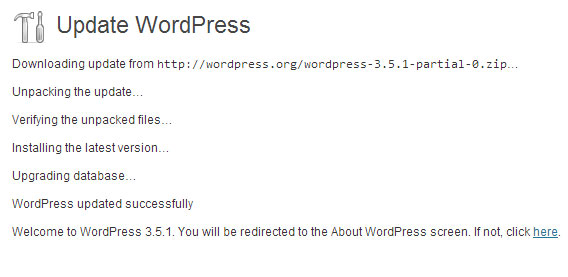
Notice the second last message that says that “WordPress updated successfully.” You will now be redirected to the About WordPress page which will welcome you to the new version, and also inform you about the features that comes with this new version. Congratulations, you have successfully updated WordPress to the latest version.
Note: If you have customized the TwentyTwelve or TwentyEleven theme, then you should not use the automatic upgrade method, as it will overwrite all the changes that you have made to your theme.
Just in case if you see a “failed update” message, then delete the file .maintenance from your WordPress directory using FTP client like Filezilla or cPanel’s File Manager. Once you delete this file, you won’t get that message any more; but you will now need to manually update WordPress.